How to Set Up Payment on Shopify a Guide
- 1.
So… You Built a Store, but the “Buy” Button’s Just for Show? 😬
- 2.
Shopify Payments vs. Third-Party Gateways: The Great American Showdown
- 3.
Breaking Down the Fee Fiesta: Yes, $100 Ain’t $100
- 4.
Step-by-Step: Enabling Shopify Payments (The “Just Works” Path)
- 5.
Adding PayPal, Apple Pay, & the Gang (Because Choice = Trust)
- 6.
Testing Like a Pro (Before Real Money Flows)
- 7.
Going Live: Flipping the Switch Without the Cold Sweats
- 8.
Payouts, Timing & That First “Cha-Ching” Moment
- 9.
Common Payment Pitfalls (And How to Dodge ’Em Like Neo)
- 10.
Which Payment Method is *Actually* Best for Your Biz?
Table of Contents
how to set up payment on shopify
So… You Built a Store, but the “Buy” Button’s Just for Show? 😬
Y’all ever host a cookout, grill to perfection, set the table with those fancy paper plates—and then realize *you forgot the forks*? That’s your Shopify store without a payment gateway. Looks fire. Zero conversions. Pure digital heartbreak. If you’re knee-deep in how to set up payment on shopify and your cart’s emptier than a politician’s promise, pull up a folding chair. We’ve been there—staring at “Checkout” like it’s a locked vault, wondering why people *add* but never *pay*. Spoiler: it’s not them. It’s your setup. Let’s fix that—with zero jargon, all soul, and a side of Southern sass.
Shopify Payments vs. Third-Party Gateways: The Great American Showdown
Let’s clear the air: **Shopify Payments** (powered by Stripe under the hood) is Shopify’s *own* credit card processor—and it’s the smoothest ride this side of Route 66. Why? No third-party redirects. No sketchy “secure?” warning pages. Just “Enter Card → Boom, Done.” But—*big but*—it’s only available in 17 countries (US, CA, UK, AU, etc.). If you’re outside that crew? You’re playing with PayPal, Stripe (standalone), Square, or 100+ others via Shopify’s gateway directory.
“Shopify Payments: like ordering coffee at your local spot—name on the cup, no ID needed. Third-party? Like paying in quarters at a vending machine—works, but clunky.”Your choice here defines your entire how to set up payment on shopify flow—speed, trust, and fees hinge on it.
Breaking Down the Fee Fiesta: Yes, $100 Ain’t $100
“How much does Shopify take from a $100 sale?”—asked every hopeful hustler before their first payout. Let’s run the numbers (USD, no fluff):
| Plan | Shopify Payments Fee | Third-Party Gateway Fee | Net from $100 Sale |
|---|---|---|---|
| Basic ($29/mo) | 2.9% + $0.30 | 2.9% + $0.30 + *2.0%* | $96.80 (SP) / $94.80 (TP) |
| Shopify ($79/mo) | 2.6% + $0.30 | 2.6% + $0.30 + *1.0%* | $97.10 (SP) / $96.10 (TP) |
| Advanced ($299/mo) | 2.4% + $0.30 | 2.4% + $0.30 + *0.5%* | $97.30 (SP) / $96.80 (TP) |
Step-by-Step: Enabling Shopify Payments (The “Just Works” Path)
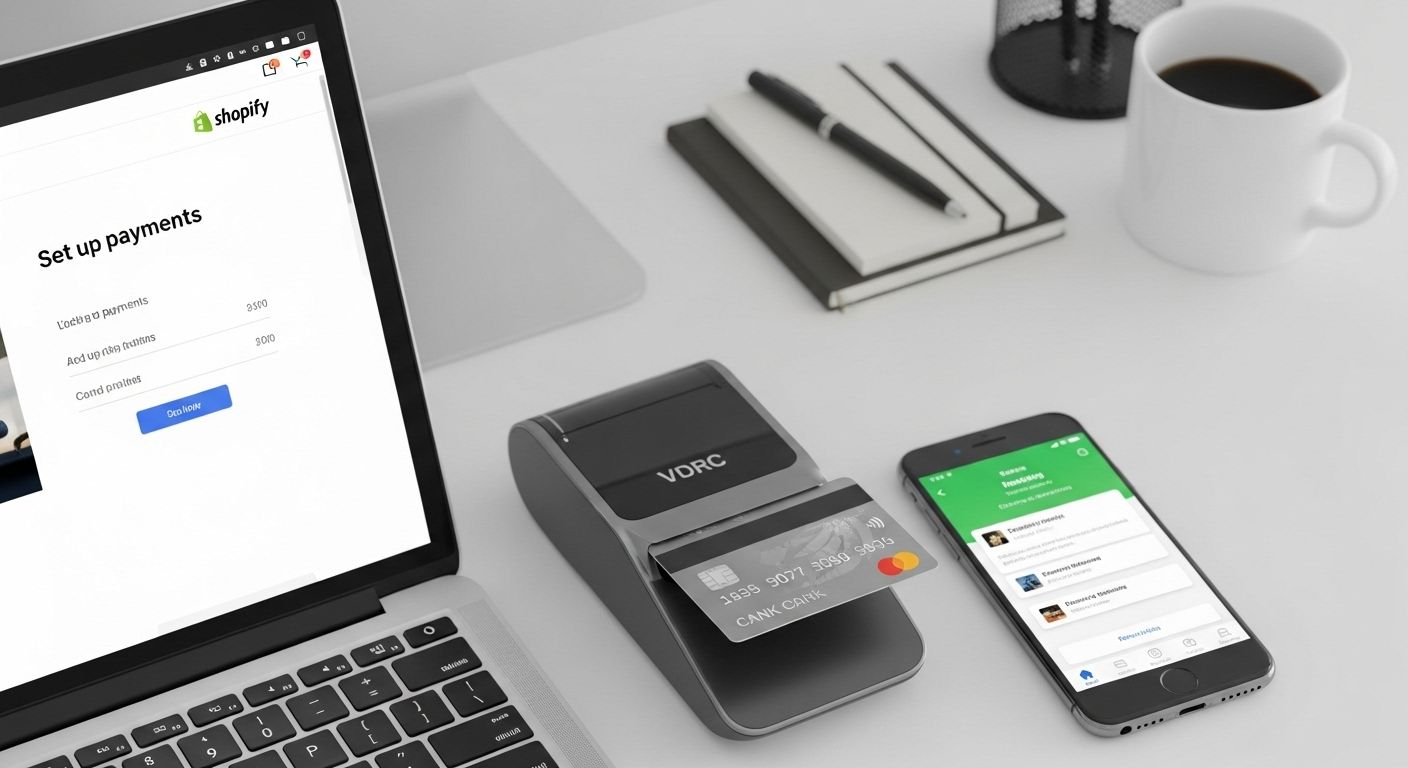
If you’re in the US, CA, or blessed land—and wanna skip the middleman—here’s the golden route for how to set up payment on shopify:
- Log in → Settings → Payments
- Under “Accept credit cards,” click Choose provider → Shopify Payments
- Enter biz deets: legal name, EIN (or SSN), bank account (for payouts), and business address
- Verify identity (Shopify’ll auto-check IRS records—no docs unless flagged)
- Boom. “Credit card” turns green. You’re live.
Adding PayPal, Apple Pay, & the Gang (Because Choice = Trust)
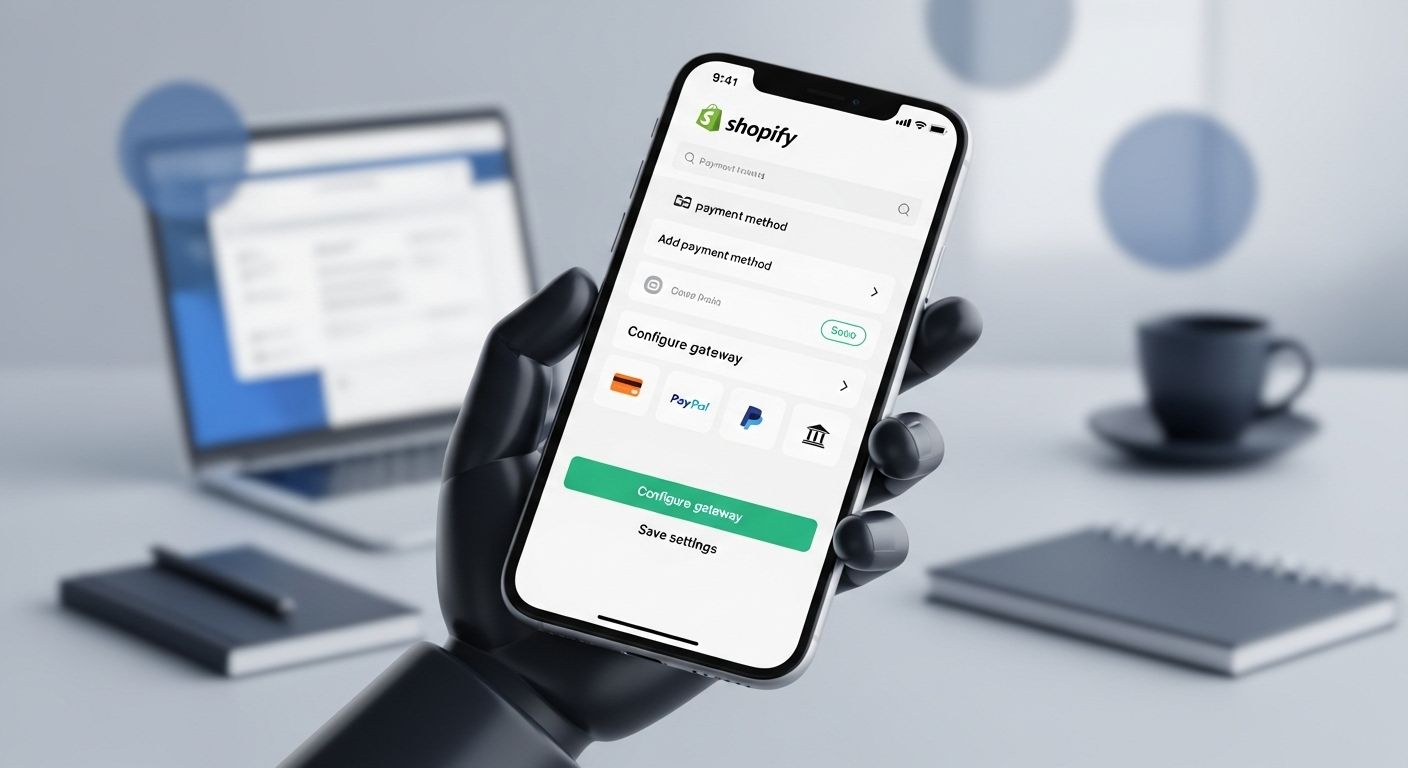
Let’s be real: some folks won’t buy unless they see that blue *“Pay with PayPal”* button—same way others won’t date someone without Spotify Premium. Diversify or die. To expand your how to set up payment on shopify options: Settings → Payments → Choose provider → pick from:
- ✅ PayPal (free to add; charges 3.49% + $0.49/sale)
- ✅ Apple Pay / Google Pay (free, *but only if Shopify Payments is active*)
- ✅ Shop Pay (Shopify’s 1-click checkout—boosts conversions by 1.72x)
- ✅ Amazon Pay, Venmo, Crypto (Coinbase)—niche but growing
Testing Like a Pro (Before Real Money Flows)
Never, *ever* go live without testing. We’ve seen folks skip this, then panic when their first “sale” bounces back like a bad check. Shopify’s got you:
Enable Test Mode for Sandbox Runs
In Settings → Payments, flip **Test mode** ON. Use Shopify’s magic test cards: - ✅ Success: 4242 4242 4242 4242 - ❌ Decline: 4000 0000 0000 0002 - 🔄 3D Secure: 4000 0025 0000 3155 Run full checkouts—from cart to confirmation email. Check Shopify admin: does the order appear *and* show “Payment pending”? Does your test email get the receipt? Miss this, and your real launch feels like defusing a bomb blindfolded. Solid how to set up payment on shopify prep includes rehearsal.
Going Live: Flipping the Switch Without the Cold Sweats
When you’re ready to graduate from sandbox to real world: 1. Disable **Test mode** 2. Double-check payout schedule (Settings → Payments → Payouts) 3. Set up *fraud analysis* (Settings → Checkout → Fraud protection) 4. Add trust badges near checkout (“SSL Secured,” “McAfee Verified”) Oh—and *disable* “manual payment” methods (like “Bank Deposit”) unless you *want* to chase payments like a repo man in July. Real talk: 87% of cart abandoners bail at payment—make it feel safer than a hug from Nana. That’s the emotional core of how to set up payment on shopify.
Payouts, Timing & That First “Cha-Ching” Moment
So you made a sale! Now… where’s the cash? Shopify Payments does rolling payouts:
- 🇺🇸 US merchants: 3 business days (e.g., Mon sale → Thurs deposit)
- 🇨🇦 CA: 2 business days
- 🇬🇧 UK: Next business day
Common Payment Pitfalls (And How to Dodge ’Em Like Neo)
Let’s tally the disasters we’ve patched:
- 💥 “My PayPal isn’t showing at checkout!” → Forgot to *activate* it after adding (toggle ON in Payments)
- 💥 “Orders say ‘Pending’ forever!” → Test mode still on, or bank details incomplete
- 💥 “Customers get ‘Payment failed’ but card wasn’t charged!” → 3D Secure misconfig, or card issuer blocks ecomm
- 💥 “Shopify took extra fees!” → Used third-party gateway on Basic plan (that sneaky 2% hit)
Which Payment Method is *Actually* Best for Your Biz?
“Which payment method is best for Shopify?”—depends on your crowd:
- 🛍️ Direct-to-Consumer (DTC) Brands: Shopify Payments + Shop Pay (fastest, highest conversion)
- 🌍 Global Sellers: PayPal + Stripe (covers 200+ countries, local payment methods)
- 📱 Mobile-First Shops: Apple Pay / Google Pay (1-tap, 70% faster checkout)
- 💸 Budget Startups: Shopify Payments (no extra gateway fees = fatter margins)
For more no-BS guides, swing by Public Market, dig into our Ecommerce vault, or start lean with how to start a ecommerce business without money.
Frequently Asked Questions
How much does Shopify take from a $100 sale?
On the Basic plan ($29/mo), Shopify takes $3.20 from a $100 sale via Shopify Payments (2.9% + $0.30), leaving you $96.80. If you use a third-party gateway like PayPal, Shopify adds an extra 2.0% fee—so $5.20 total, netting $94.80. Higher plans reduce fees: Advanced plan keeps you $97.30 via Shopify Payments. This is core to understanding how to set up payment on shopify profitably.
How to receive payments on Shopify?
To receive payments in how to set up payment on shopify, first activate a payment provider (e.g., Shopify Payments, PayPal) in Settings → Payments. Once enabled, funds from sales flow into your linked bank account on Shopify’s payout schedule (e.g., 3 business days in the US). No manual collection needed—Shopify auto-processes, verifies, and deposits. Ensure your bank details are confirmed to avoid holds. That’s the backbone of how to set up payment on shopify seamlessly.
How do I collect payment on Shopify?
You don’t “collect” manually—Shopify handles it automatically once you’ve completed how to set up payment on shopify. After a customer checks out, Shopify: (1) authorizes the charge via your gateway, (2) captures funds (usually instantly), (3) batches payouts to your bank. For offline/phone orders, use Shopify POS or draft orders—but for web sales, it’s 100% hands-off. Just monitor Orders → Payments for status. That’s the beauty of proper how to set up payment on shopify automation.
Which payment method is best for Shopify?
For most US-based stores, **Shopify Payments + Shop Pay** is the gold standard in how to set up payment on shopify—lowest fees, highest conversion (1.72x lift), and seamless UX. Globally, layer in PayPal for trust, and Apple/Google Pay for mobile shoppers. Avoid third-party gateways unless necessary—they add fees and friction. Ultimately, the “best” method aligns with your audience’s habits—not trends. That’s strategic how to set up payment on shopify design.
References
- https://www.shopify.com/tools/profit-margin-calculator
- https://help.shopify.com/en/manual/payments/shopify-payments
- https://www.statista.com/statistics/277122/conversion-rate-of-shopping-carts-in-the-us/
- https://stripe.com/guides/ecommerce-payments